Dashboard dark theme
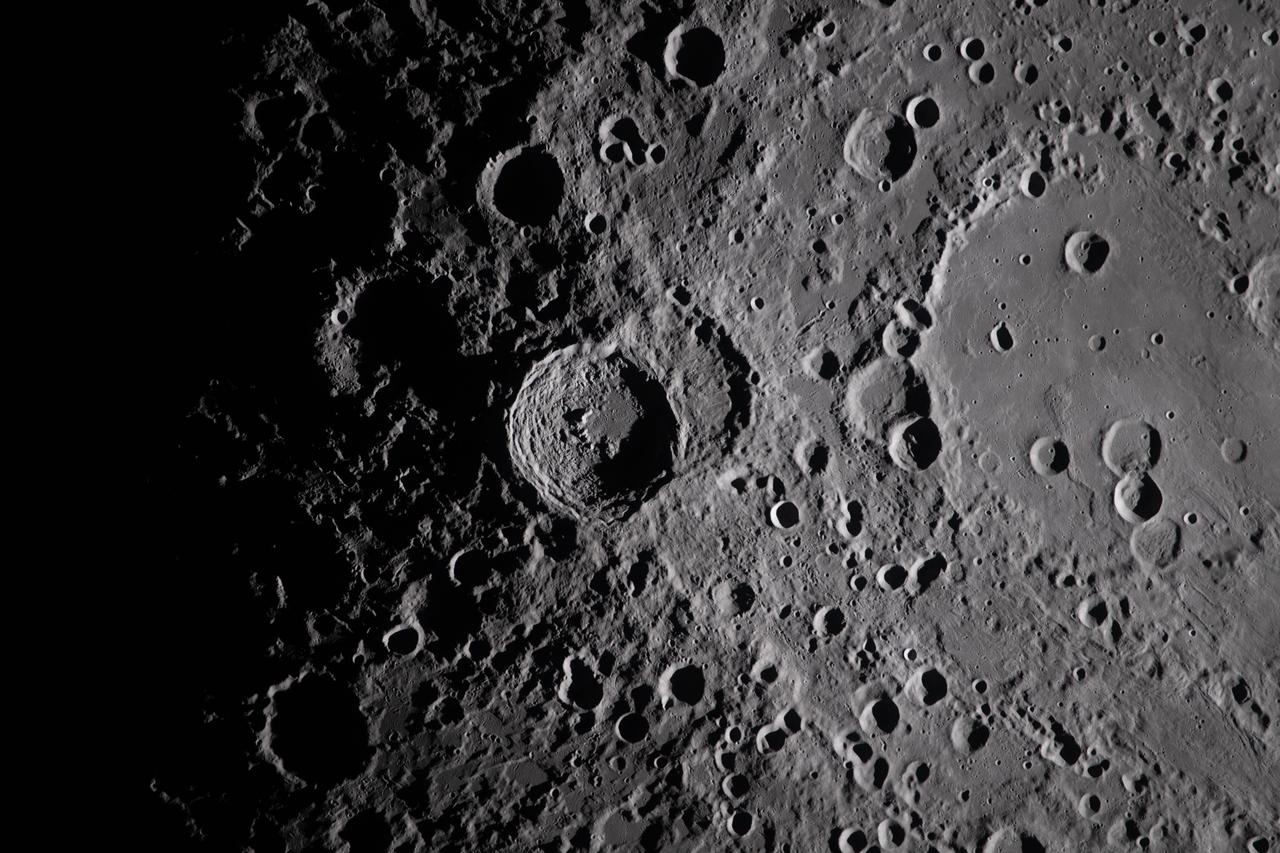
Shadows Across Vavilov Crater by NASA and the Artemis II crew

Shadows Across Vavilov Crater by NASA and the Artemis II crew

Several weeks ago, we introduced and began testing a dark theme option for our dashboard. This added an option for controlling the dashboard theme which now lets users select between the standard light theme, our new dark theme, or letting the system or browser decide which of those themes to use.

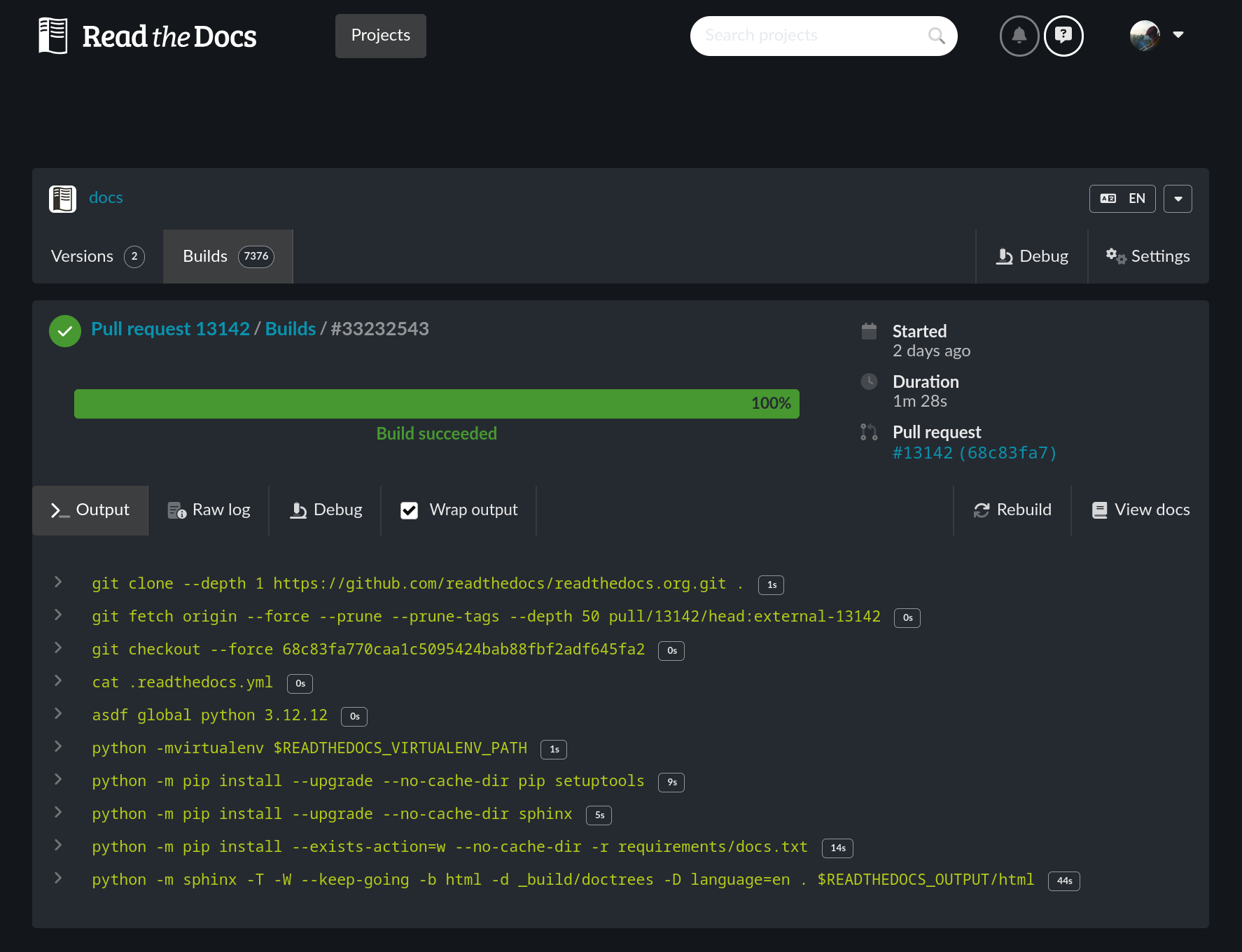
If you are like us and use Read the Docs throughout your day, and especially if you work in dim lighting, you might also have found yourself wanting a dark theme option for our dashboard. The new dark theme restyles the majority of the dashboard, with some additional improvements already planned. Users can select to use the dark theme for their account, however it is only active while logged in. Logged out users will always use the standard light theme.

Application dashboard showing the details of a successful project build

These changes are now all released and you can switch between any of these theme options in your account settings. The options available for the dashboard theme preference are:

  • Light theme, always use the default and existing dashboard theme.
  • Dark theme, always use the dark theme.
  • Use system theme, automatically select the correct theme based on your browser or system display preferences.
Changing the dashboard theme

To switch your dashboard theme for the Read the Docs dashboard, visit the dashboard preferences in your account settings:

You can find the theme setting in your account settings page. To get there, expand the user profile menu at the top of the page and select Settings, then go to the Dashboard page under Preferences.

As always, open a support request to let us know what you think or open an issue if you hit any rough edges.